
Competitor Monitoring configuration
For some customers we can provide a competitor monitoring service. This service must be configured in the database. The objective of this service to report what the competitors are doing. For example, where are they published and segmented in various topics like (Corporate news, product news, event & exhibition, case studies, advertising and so on.
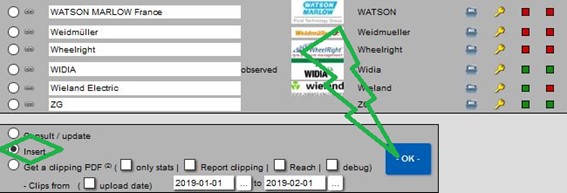
To configure this in our system go to Main Menu, under administration tasks select Customer Accounts in order to create the competitor’s account one by one. At the bottom of the page select insert then ok, as shown below in green.
Then you directly access the customer creation form.
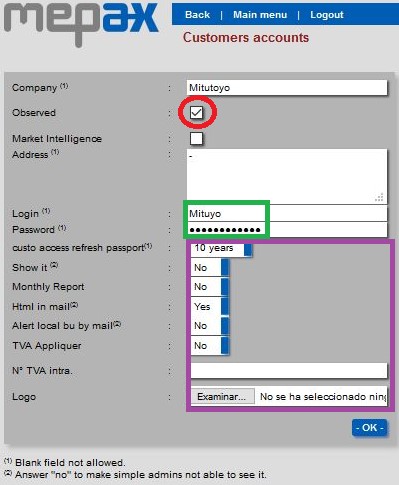
Here you must add:
- Monitored company name.
- As shown above in red, select observed
- You do not need the address.
- Login & Password which you must create.
- Now you must complete the next 6 fields in the same way shown in the example above in purple.
- Finally, upload JPG of the competitor’s logo and click ok.
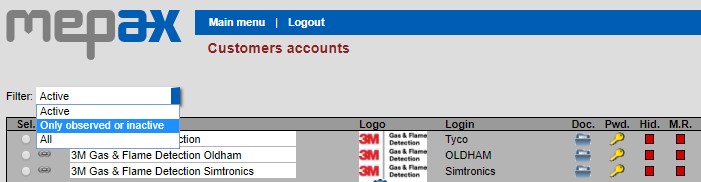
Now, you have to go back to Customer Account and open the competitor account. To do this you can filter and select by Only observed or inactive as shown below in blue.
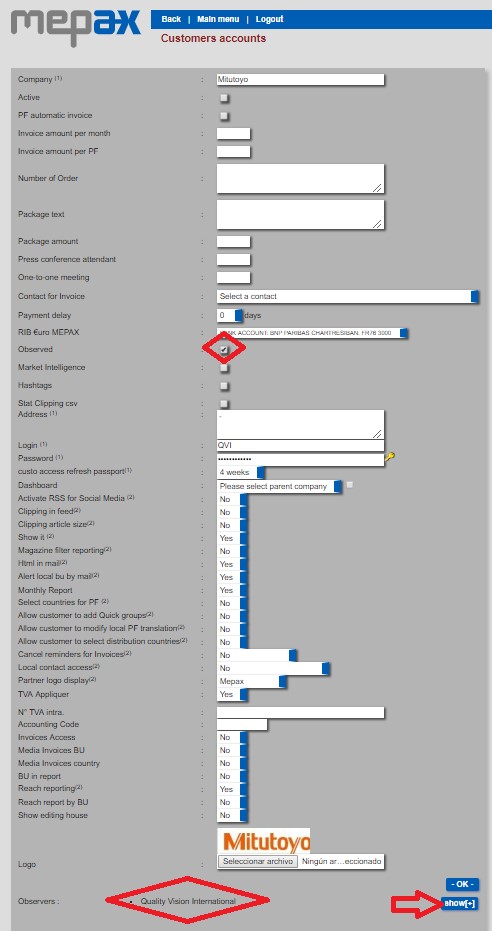
- Once the competitor monitoring account is open, please ensure the observed box is checked as shown above in red.
- Then at the bottom of the page click on show [+] to select the customer that is observing the competitor as displayed above in red.
Now you need to assign a communication contact this should be the communication contact from the company observing their competitor, definitely NOT THE COMPETITOR OBSERVED.
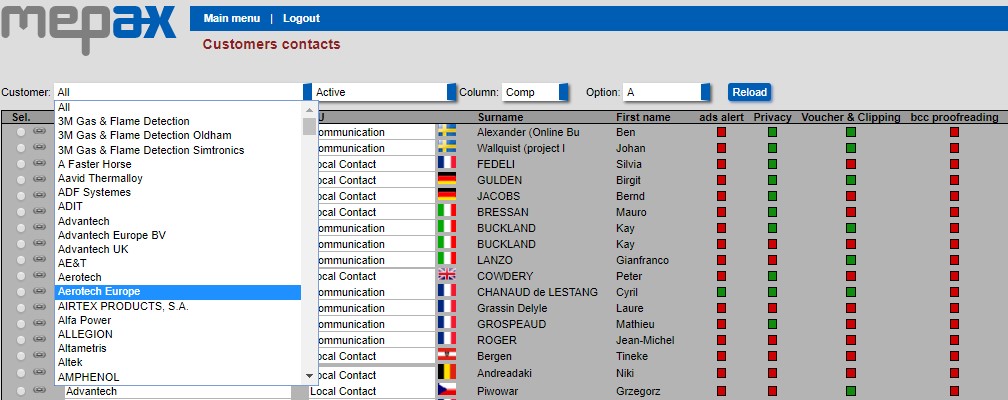
To do this please, Go to Main Menu under the administration tasks select Customers (contacts). Select your observed competitor by scrolling in the drop-down box as shown below in blue and click on reload.
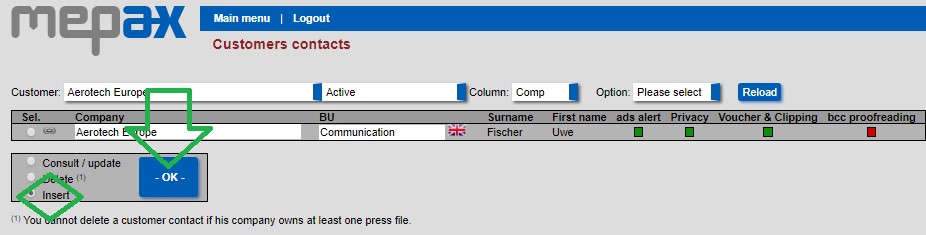
To add the required information, at the bottom of the page, click on insert then ok as displayed below in green:
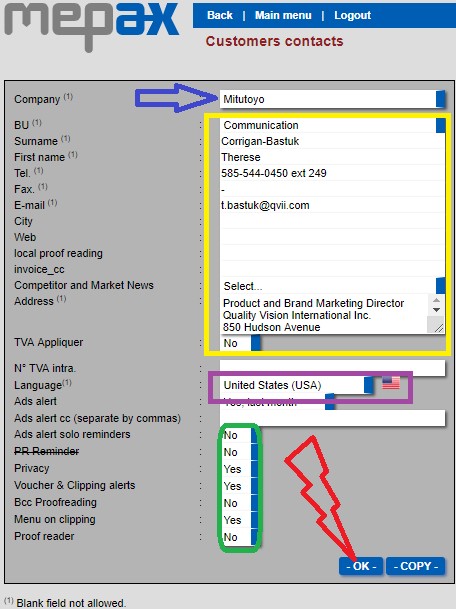
Now you directly access the customers contacts form:
- Please, select the observed company below in blue.
- Put the information of the observer in the field highlighted below in yellow.
- Select language of the customer observer below in purple.
- And complete the fields highlighted below in green as shown in the example diagram.
- Then validate by clicking on ok as displayed below in red.
At this step the communication contact (Observer customer) is ready to receive your content about the competitor (observed).
In order to send the content found you must create a press file folder each month only to upload the clipping you have taken. For example:
- Mitutoyo - Product News - Jan19,
- Mitutoyo - corporate news - Jan19,
- Mitutoyo - Case Studies - Jan19,
- Mitutoyo - Technical articles - Jan19,
- Mitutoyo - Events & Exhibitions, Advertisements - Jan19
The process to create this press file folder is explained in the second part of this guide section 2 and the process to upload clipping (articles published found) is explained in the third part section 2.