Customer’s private access – Clipping
In their customer private access our clients can follow all the clipping activities we are doing. In their Main Menu by placing the mouse on Clipping, they can select 3 interfaces: FILES, REPORT and MONITORING, as displayed below.
-
FILES
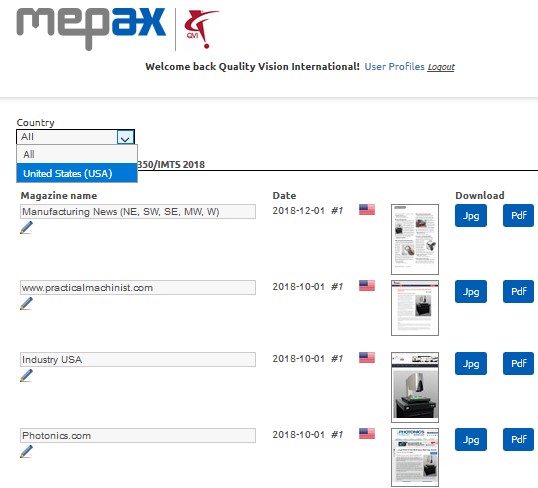
In files, they can consult and download all the uploaded clippings, moreover by clicking on the drop-down box country below, they can also filter the clippings by country.
-
REPORT
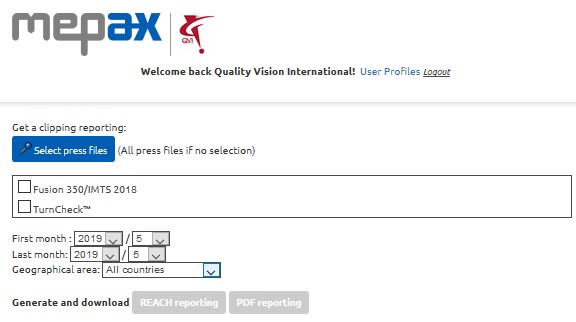
In the report section they can generate a clipping report.
- They can do this for all the press files or by selecting one or more by clicking on “Select press files” below in blue.
- They can choose the First month and the Last month before editing their clipping report.
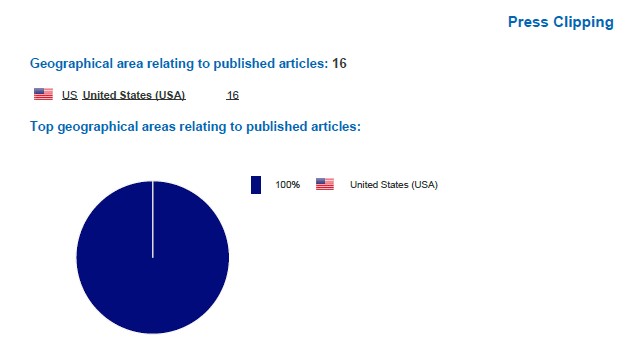
- Then by scrolling in the drop-down box below called “Geographical area” they can choose the country of the report.
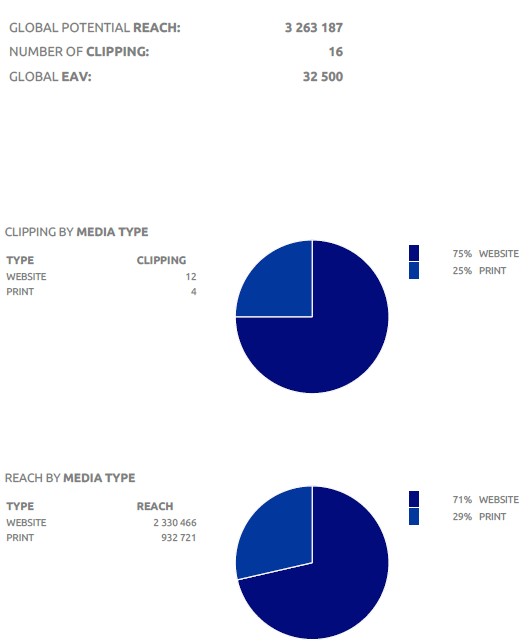
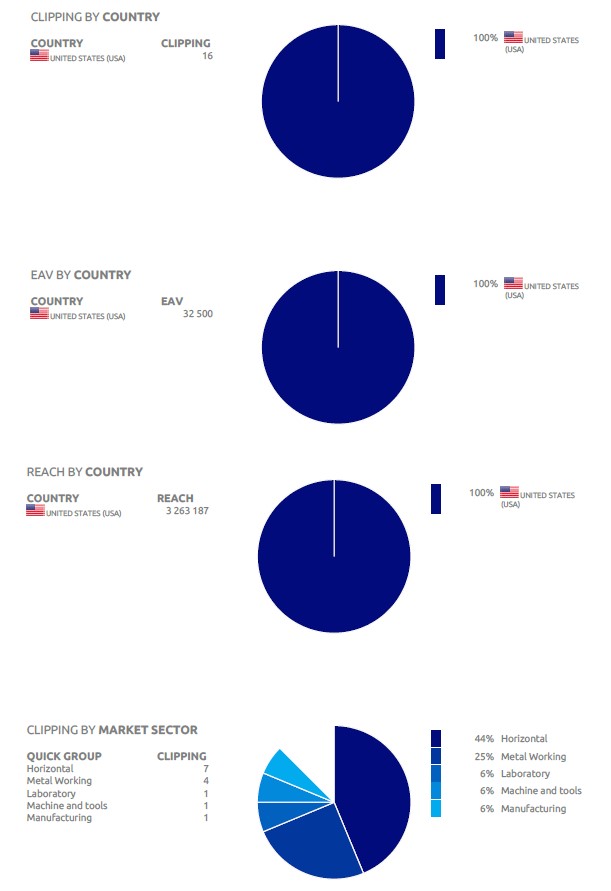
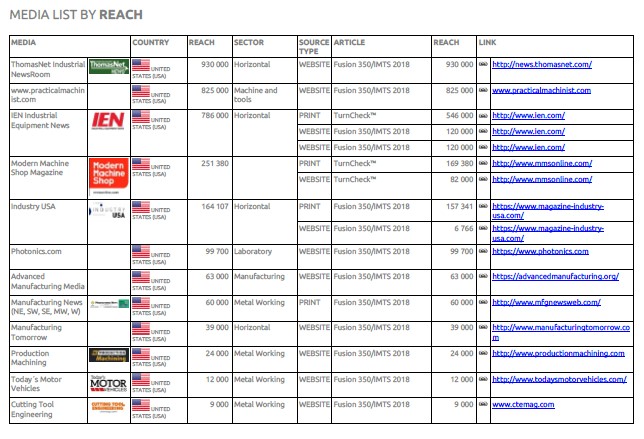
- Finally, by clicking on one of the 2 options below in grey, they can generate and download a REACH reporting and a PDF reporting.
-
PDF Reporting
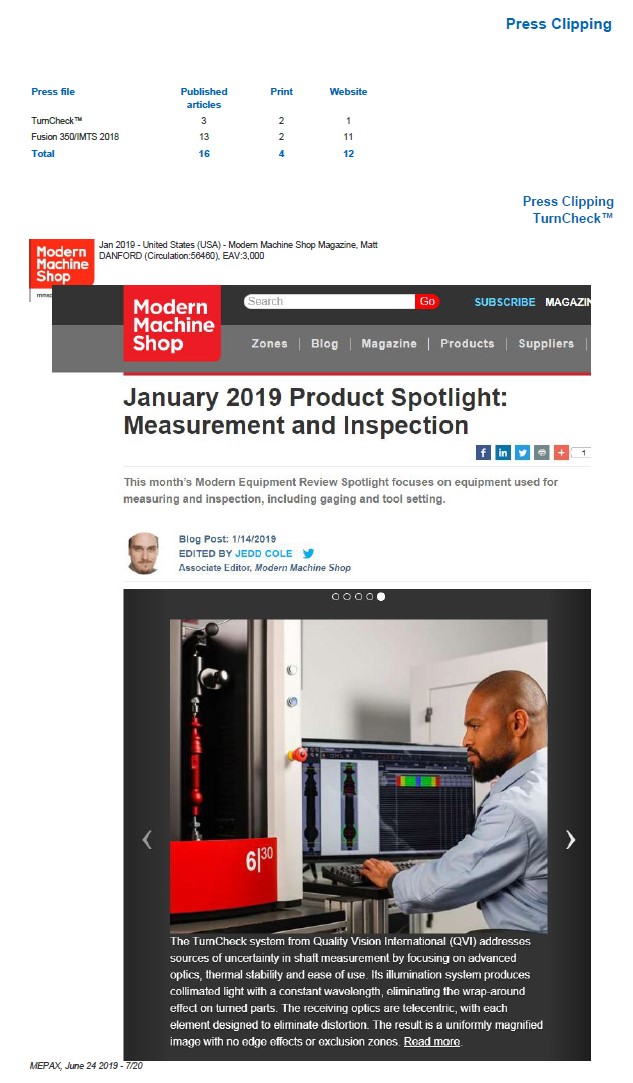
In the PDF reporting they access the information below with the photo of each clipping in the selected period:
-
MONITORING
They can download a PDF Report, the links to all articles and an Excel report per competitor by clicking on the grey boxes below.
Then in the Competitors Monitoring interface our Observer customer has the possibility to compare the clipping result of the companies observed. By scrolling in the drop-down boxes below in green called “Generate charts” and by checking the competitor’s boxes they want to consult below in purple.
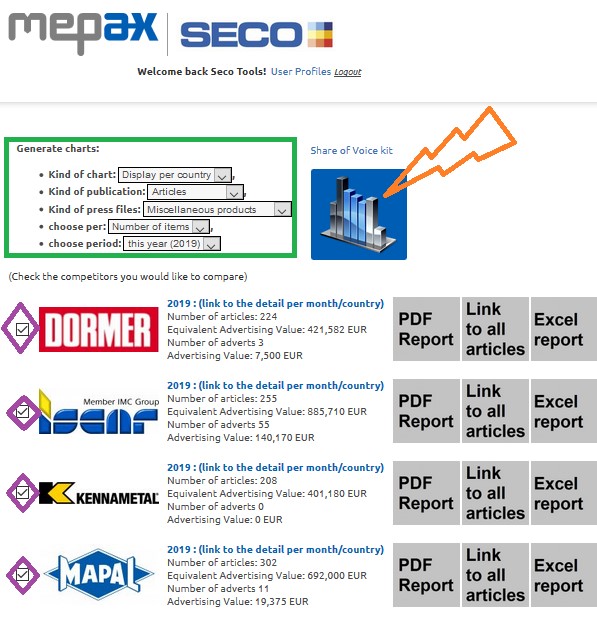
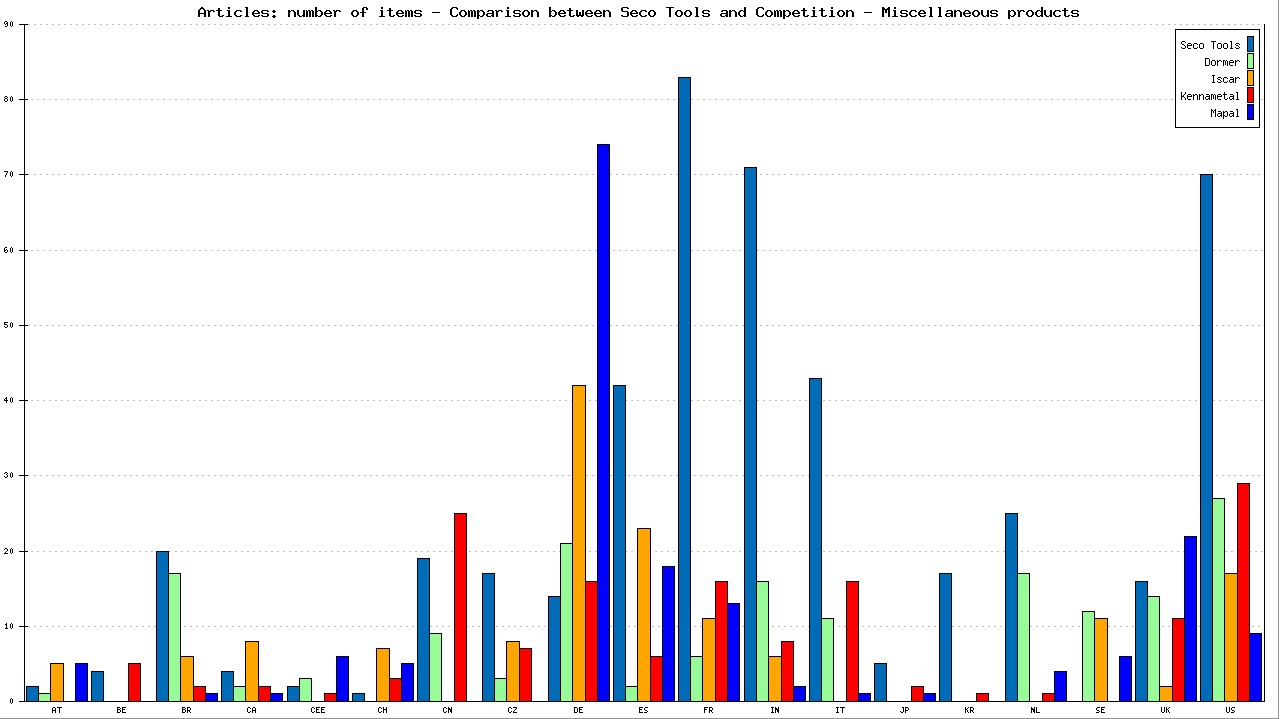
Once all is configured to generate the comparison between the customer and the companies monitored, by clicking on the icon above marked in orange, they get their comparison diagrams as shown below with the Seco Tools example: