
How to delete a clipping and avoid X status in Affected journalists?
If you create a clipping box by error or forget to upload your clipping the status of your clipping box will appear as X in Affected journalists in red below.

At this step we have an important issue that we are obliged to fix immediately. There are 2 ways to fix this X status.
- If you have forgotten to upload your clipping, go back into Clipping files, select destination clipping box by scrolling in the drop-down box as shown below in red and blue. Then as displayed below in green upload your file.
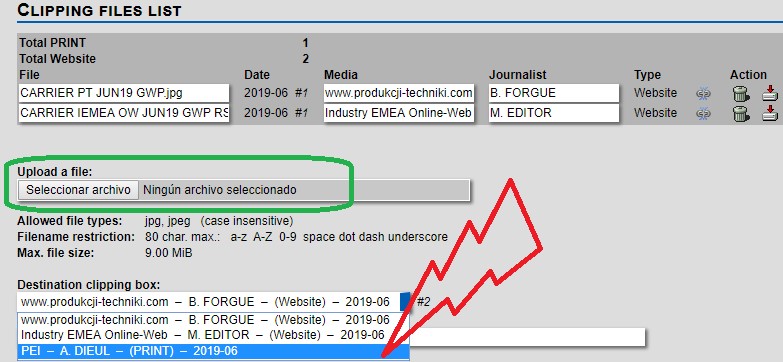
2. If you created a clipping box in error you need to follow this process.
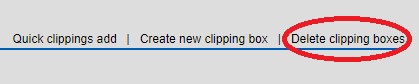
- Go to clipping files and click on Delete Clipping boxes below in red.
- Select your empty clipping box and click on Delete clip box below in red.
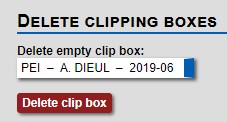
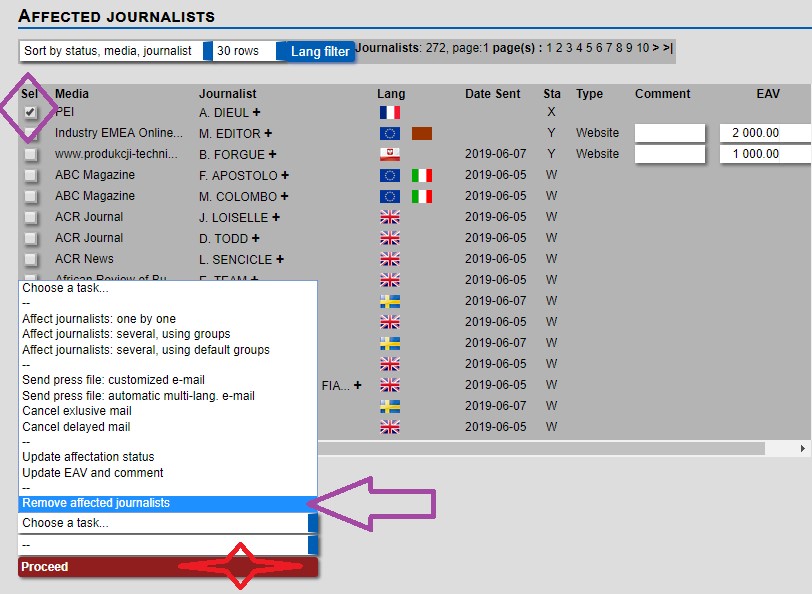
At this step you have deleted the empty clipping box, but you have not deleted it on the affected journalists. To do this go back to affected journalists.
- Click on the check box to select the media/journalist.
- In Choose a task select Remove Affected journalists and click on Proceed in red.
X Status should not appear in the affected journalists list of any press release because it creates an error in the access of the client clipping report. It affects the number of clippings uploaded statistics in the customer clippings reports.
To find the list to all X status, go to Main menu, under Administration tasks, click on X Status.
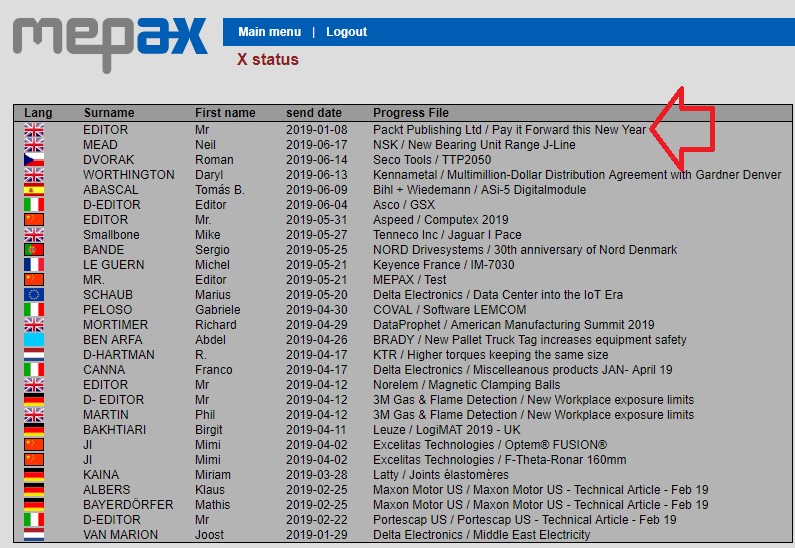
Once in this list, you can click on PR title shown in red, then you will be taken directly to the clipping file. You just have to follow the previously detailed above.